Webhook
Webhook is one of the alarm distribution methods in B3.
A webhook is an automated, event-driven way for one application to send real-time data to another via an HTTP POST request to a unique URL. Instead of an application constantly asking for updates (polling), a webhook allows the source application, which in our case is B3, to "push" information to a destination application the moment a specific event occurs. This event in case of B3 is a detection of an active alarm.
At present, webhooks are used to distribute alarms via SMS using B3 SMS devices described in T-SMS Device Installation Manual.
To create a webhook:
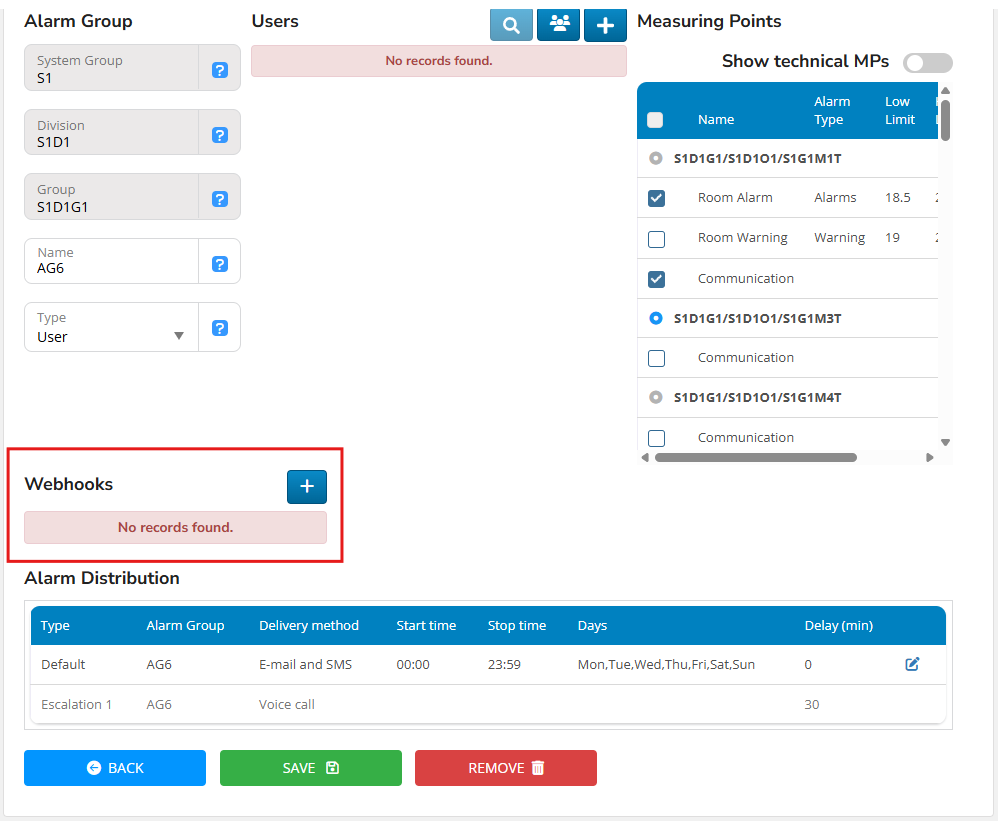
Click "+" button in the Webhooks part of the Alarm Group details form that you can open by Edit Alarm group.

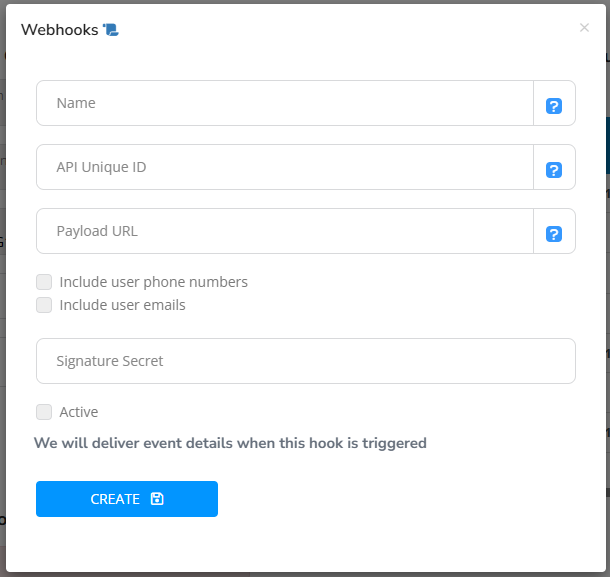
A webhook form is opened.

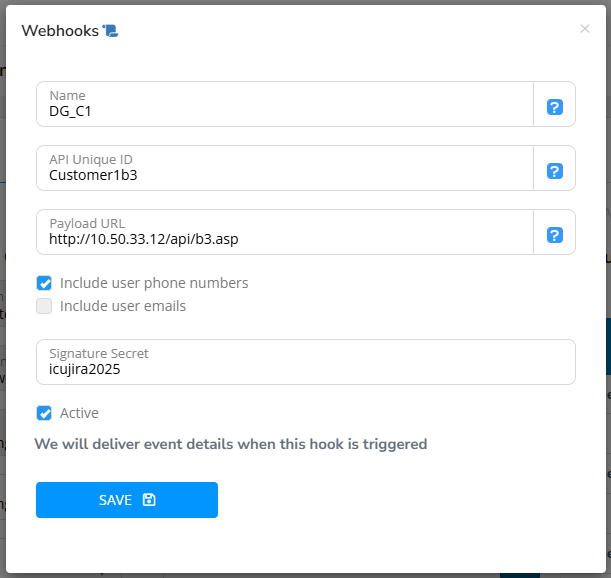
Enter webhook name, API Unique ID, Payload URL, mark "Include user phone numbers" and "Active".

Click the icon after Webhooks form title to check the JSON-payload format.

The form fields are described in the table below.
Name
Webhook name.
No default value, must be unique.
API Unique ID
Defines the B3 SMS device which shall send the SMS.
No default value, must be unique. The same string is entered into the B3 SMS device as described in T-SMS Device Installation Manual
Payload URL
Points to API that receives the webhook POST. A fixed URL pointing to B3 SMS server.
Signature Secret
Signature Secret. A fixed value.
icujira2025
Include user phone numbers
If checked then the POST contains user mobile phone number.
Must be checked.
Include user emails
If checked then the POST contains user emails.
Not checked in case of webhook used for B3 SMS devices. Planned for future use.
Active
A checkbox that enables a given webhook.
Must be checked for the webhook to work.
Click "Save" and sign.
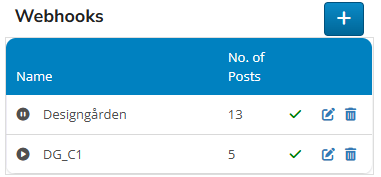
Multiple webhooks can be defined in an alarm group.

The icon on the left shows if the webhook is active. In the example above Designgården is not active and DGC1 is active.
The number of POSTs distributed by a given webhook is also shown.
The check mark shows the status of the last POST. At the end of each webhook row there are "Edit" and "Delete" icons.
Last updated