> For the complete documentation index, see [llms.txt](https://help.boomerang3.com/llms.txt). Markdown versions of documentation pages are available by appending `.md` to page URLs; this page is available as [Markdown](https://help.boomerang3.com/bbo-gateway-installation-manual/quick-installation/bbo-setup.md).
# BBO setup
## BBO parameters
The following parameters must be set in BBO gateway:
1. Network configuration so BBO can communicate with the Boomerang server.
2. POST Client settings which define the Boomerang server address.
3. SNTP server configuration that allows BBO to obtain correct real time.
## Preparation and power up
1. In case of XBB006 connect sensors and/or interfaces to BBO. In case of XBB012 and XBB021 the units are already configured. The BBO opening is presented in [Enclosure opening](/bbo-gateway-installation-manual/mechanical-installation/enclosure-opening.md).
The internal connectors of different BBO types are described in [BBO gateways](/bbo-gateway-installation-manual/bbo-gateways.md).
2. Connect BBO to Ethernet socket and its power supply to the mains. The network must have DHCP server enabled. In case a static IP is needed, follow the instructions in [Network Configuration](/bbo-gateway-installation-manual/bbo-web-interface/system-configuration/network-configuration.md).
3. The status (PWR/ACT) LED and the green and yellow LEDs built-in into Ethernet connector shall start blinking. The status LED blinks at one-second interval.
## Connect to BBO
1. Detect the BBO IP address as described in [Microchip Ethernet Discoverer](/bbo-gateway-installation-manual/tools/microchip-ethernet-discoverer.md).
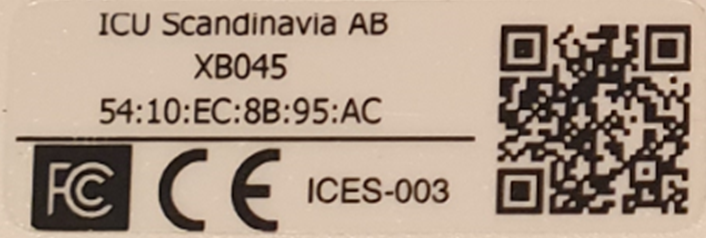
2. Double click the row where your BBO gateway is shown to open its web panel in a browser. Compare the MAC address with the one printed on the gateway label if you are not sure which one is the right one.
2. The gateway home web page will open. The home page shows the number and type of 1 Wire devices connected to BBO and some of their basic parameters. BBO detects these devices automatically.
Depending on the BBO firmware version the view of web interface may be slightly different, but the basic parts of it are the same for all the versions.
This manual presents the user interface for firmware version 2.26. The home screen for this version is shown below.

## Login
To change the BBO configuration use System Configuration menu.

If you select any of the System Configuration menu positions, a login form will be displayed:

The default user credentials are:
**Username: admin**
**Password: icu**
## Network configuration
1. Go to System Configuration -> Network to open “Network Configuration” form.

2. In the “Network Configuration” form you can change the network settings if needed. After the change, click “Save” at the bottom to save the settings.
3. At the bottom of the page in the same form, you can find the MAC-address that is used as a gateway ID in Boomerang 3 as described in [Creating BBO in Boomerang 3](/bbo-gateway-installation-manual/quick-installation/creating-bbo-in-boomerang-3.md).
In the example above this MAC address is 68:27:19:32:BD:C1.
## POST client configuration
The POST client configuration defines where the POST messages are sent from the gateway and shall point to the Boomerang 3 server receiver page.
1. Go to System Configuration -> POST Client to open “POST Client Configuration” form.

2. Check the “Enable Client” and “POST Header” checkboxes.
3. Enter 60 into the “Period” field. This field defines in seconds how often the gateway communicates with the server.
4. Its value depends on the BBO sensors period. B3 sets it to the period value of the gateway sensor that has the shortest measurement period. For example, if there are 3 sensors connected to a given BBO with log periods of 1 min, 5 min and 30 min respectively, all of them will log the measurements with 1 min log interval. The reason of this behaviour is the fact BBO always sends a complete set of the readings of all the sensors it handles.
5. The older BBO types (FW below 2.26) does not accept period settings from B3 and the value of this field must be set manually to the shortest period needed by this BBO gateway sensors.
6. The “URL” field defines where the POST messages from the gateway are sent and shall point to the Boomerang 3 server receiver page. The content of this field depends on the gateway type and can be found in Boomerang 3 in a gateway definition form as shown in chapter 2.4.
7. For BBO gateway it is http\://\[B3URL]/receiver/bbo where \[B3URL] is the Boomerang 3 system URL.
8. In the example the URL is .
## SNTP server settings
The BBO gateway **must have** the correct date and time to operate.
The date and time are read from an SNTP server defined in “System Configuration – Network Time”. The BBO by default uses public pool.ntp.org SNTP server.
This setting must be changed if there is no access to the default SNTP server.
The Timezone Offset must be set to 0 (zero) as Boomerang 3 expects the time stamps in UTC time.
If there is no access to an SNTP server, the date shown after power on will be random and the gateway will not post the readings.

---
# Agent Instructions
This documentation is published with GitBook. GitBook is the documentation platform designed so that both humans and AI agents can read, navigate, and reason over technical content effectively. Learn more at gitbook.com.
## Querying This Documentation
If you need additional information that is not directly available in this page, you can query the documentation dynamically by asking a question.
Perform an HTTP GET request on the current page URL with the `ask` query parameter, and the optional `goal` query parameter:
```
GET https://help.boomerang3.com/bbo-gateway-installation-manual/quick-installation/bbo-setup.md?ask=&goal=
```
`ask` is the immediate question: it should be specific, self-contained, and written in natural language.
`goal` is optional and describes the broader end goal you are ultimately trying to accomplish on behalf of the user. GitBook uses it to tailor the answer towards what is most useful for that goal.
The response will contain a direct answer to the question and relevant excerpts and sources from the documentation.
Use this mechanism when the answer is not explicitly present in the current page, you need clarification or additional context, or you want to retrieve related documentation sections.