> For the complete documentation index, see [llms.txt](https://help.boomerang3.com/llms.txt). Markdown versions of documentation pages are available by appending `.md` to page URLs; this page is available as [Markdown](https://help.boomerang3.com/boomerang-3-instrukcja-obslugi-uzytkownika/dashboard/object_view/szczegolowy-widok-obiektu/zakladka-raport-zdarzen.md).
# Zakładka Raport zdarzeń
Przeglądaj alarmy, ostrzeżenia i inne zdarzenia dla wybranych punktów pomiarowych.
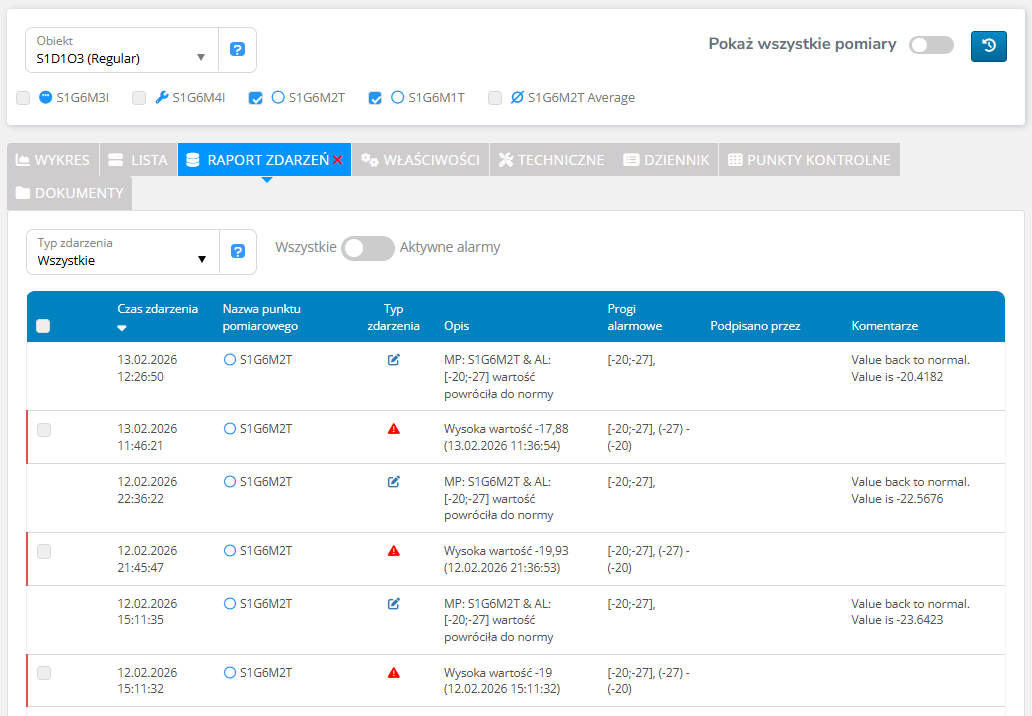
Zakładka **„Raport zdarzeń”** pokazuje zdarzenia dla punktów pomiarowych w obiekcie.
Zdarzeniami są między innymi alarmy, ostrzeżenia, błędy komunikacji i zmiany konfiguracji.
### Ikona aktywnych alarmów
Przy nazwie zakładki może pojawić się czerwony znak **x**.
Oznacza to, że w bieżącym zakresie widoku są aktywne alarmy lub ostrzeżenia.
### Kolumny i szczegóły zdarzeń
Wpis zdarzenia zwykle zawiera:
* datę i godzinę,
* punkt pomiarowy,
* typ zdarzenia (ikona w kolumnie „Typ zdarzenia”),
* opis,
* próg alarmowy,
* dane podpisujących i komentarze.
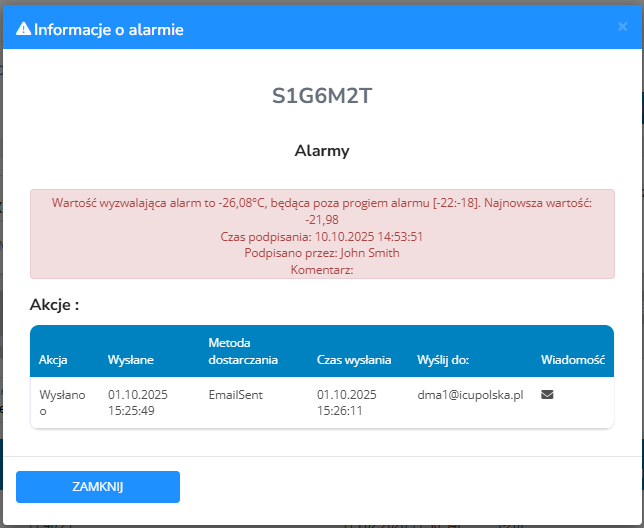
Dla alarmów i ostrzeżeń kliknij ikonę typu zdarzenia, aby zobaczyć szczegóły obsługi.
### Filtrowanie
Możesz filtrować dziennik według typu zdarzenia.
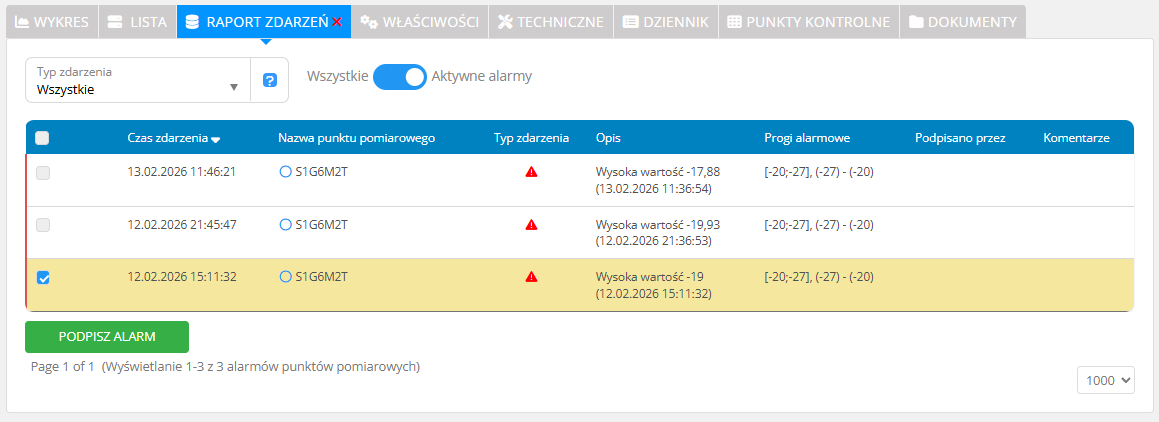
Przełącznik **„Wszystkie / Aktywne Alarmy”** pokazuje:
* wszystkie zdarzenia, albo
* tylko aktywne alarmy.
{% hint style="info" %}
Aktywne alarmy są zawsze widoczne, niezależnie od ustawionego zakresu czasu.
{% endhint %}
### Podpisywanie alarmów z listy
{% stepper %}
{% step %}
### Wybierz alarmy
Zaznacz alarmy w lewej kolumnie.
Możesz też zaznaczyć wszystkie aktywne alarmy checkboxem w nagłówku.
{% endstep %}
{% step %}
### Podpisz alarmy
Kliknij **„Sign Alarm”**.
Potwierdź operację w oknie podpisu.
{% endstep %}
{% endstepper %}
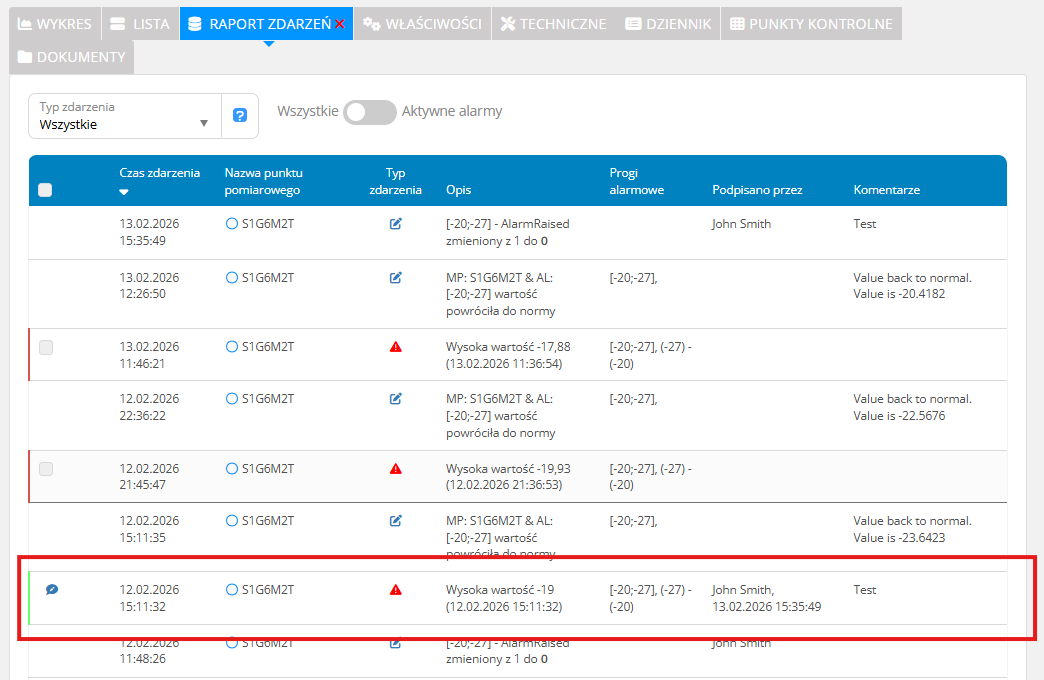
Po podpisaniu alarmy stają się nieaktywne.
Szczegóły podpisu i obsługi alarmów:
* [Podpisz](/boomerang-3-instrukcja-obslugi-uzytkownika/common_elements/sign.md)
* [Obsługa alarmów i ostrzeżeń](/boomerang-3-instrukcja-obslugi-uzytkownika/dashboard/alarms_and_warnings.md)
---
# Agent Instructions
This documentation is published with GitBook. GitBook is the documentation platform designed so that both humans and AI agents can read, navigate, and reason over technical content effectively. Learn more at gitbook.com.
## Querying This Documentation
If you need additional information that is not directly available in this page, you can query the documentation by asking a question.
Perform an HTTP GET request on the following URL with the `ask` and `goal` query parameters:
```
GET https://help.boomerang3.com/boomerang-3-instrukcja-obslugi-uzytkownika/dashboard/object_view/szczegolowy-widok-obiektu/zakladka-raport-zdarzen.md?ask=&goal=
```
`ask` is the immediate question: it should be specific, self-contained, and written in natural language.
`goal` is what the user is ultimately trying to achieve, the reason they need the answer. Sharing it helps GitBook give you a better, more relevant answer. A goal is most helpful when it describes the outcome the user wants rather than restating the question. For example, with `ask=how do I create an API token`, a goal like `automate deployments from our CI pipeline` lets GitBook tailor the answer to that use case.
The response will contain a direct answer to the question and relevant excerpts and sources from the documentation.
Use this mechanism when the answer is not explicitly present in the current page, you need clarification or additional context, or you want to retrieve related documentation sections.