> For the complete documentation index, see [llms.txt](https://help.boomerang3.com/llms.txt). Markdown versions of documentation pages are available by appending `.md` to page URLs; this page is available as [Markdown](https://help.boomerang3.com/boomerang-3-instrukcja-obslugi-uzytkownika/dashboard/misje/obsluga-misji/aktywna-misja.md).
# Aktywna misja
Jak wygląda, i jak można kontrolować aktywną misję.
Punkt misji (MP) z aktywną misją ma, obok nazwy, znacznik aktywnej misji .
### Przyciski sterowania
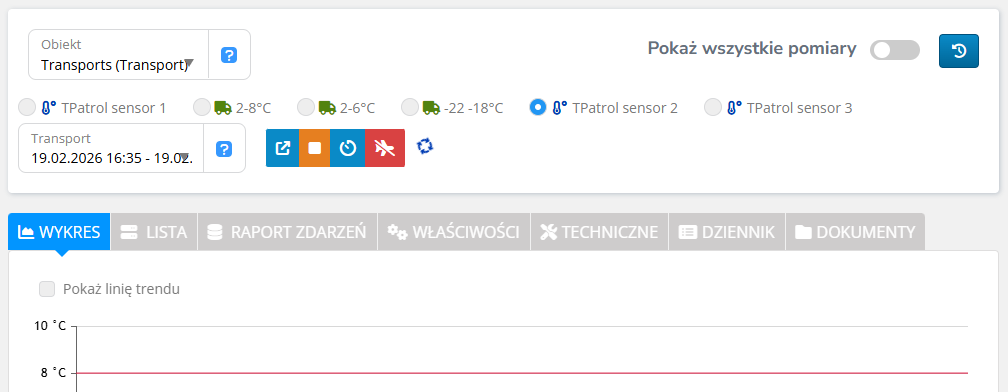
W widoku PP podczas aktywnej misji dostępne są przyciski:
1. **Zakończ misję** — kończy misję i zapisuje ją w systemie.
2. **Zaplanuj misję** — planuje misję na przyszłość.
3. **Anuluj** — anuluje aktywną misję. Anulowana misja nie jest zapisywana.
4. **Przenieś** — przenosi misję do wirtualnego PP. Funkcja jest niedostępna podczas aktywnej misji.
### Lista misji
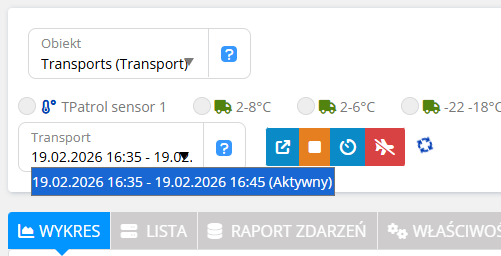
Bieżąca misja jest oznaczona jako aktywna na liście.
* Zaplanowana aktywna misja pokazuje czas startu i końca.
* Aktywna misja bez planu pokazuje tylko czas startu.
### Anulowanie zaplanowanej misji
Aby anulować zaplanowaną misję przed jej rozpoczęciem, musisz ją najpierw uwidocznić na liście misji.
Użyj ustawień **zakresu niestandardowego** i ustaw datę końcową w przyszłości.
Zobacz: [Wybór zakresu czasu](/boomerang-3-instrukcja-obslugi-uzytkownika/common_elements/wybor-zakresu-czasu.md).
Po tym wybierz misję z listy i anuluj.
Zobacz też: [Przenieś misję](/boomerang-3-instrukcja-obslugi-uzytkownika/dashboard/misje/obsluga-misji/przenies-misje.md).
---
# Agent Instructions
This documentation is published with GitBook. GitBook is the documentation platform designed so that both humans and AI agents can read, navigate, and reason over technical content effectively. Learn more at gitbook.com.
## Querying This Documentation
If you need additional information that is not directly available in this page, you can query the documentation by asking a question.
Perform an HTTP GET request on the following URL with the `ask` and `goal` query parameters:
```
GET https://help.boomerang3.com/boomerang-3-instrukcja-obslugi-uzytkownika/dashboard/misje/obsluga-misji/aktywna-misja.md?ask=&goal=
```
`ask` is the immediate question: it should be specific, self-contained, and written in natural language.
`goal` is what the user is ultimately trying to achieve, the reason they need the answer. Sharing it helps GitBook give you a better, more relevant answer. A goal is most helpful when it describes the outcome the user wants rather than restating the question. For example, with `ask=how do I create an API token`, a goal like `automate deployments from our CI pipeline` lets GitBook tailor the answer to that use case.
The response will contain a direct answer to the question and relevant excerpts and sources from the documentation.
Use this mechanism when the answer is not explicitly present in the current page, you need clarification or additional context, or you want to retrieve related documentation sections.

 .
.
 — kończy misję i zapisuje ją w systemie.
2. **Zaplanuj misję**
— kończy misję i zapisuje ją w systemie.
2. **Zaplanuj misję**  — planuje misję na przyszłość.
3. **Anuluj**
— planuje misję na przyszłość.
3. **Anuluj**  — anuluje aktywną misję. Anulowana misja nie jest zapisywana.
4. **Przenieś**
— anuluje aktywną misję. Anulowana misja nie jest zapisywana.
4. **Przenieś**  — przenosi misję do wirtualnego PP. Funkcja jest niedostępna podczas aktywnej misji.
### Lista misji
Bieżąca misja jest oznaczona jako aktywna na liście.
* Zaplanowana aktywna misja pokazuje czas startu i końca.
* Aktywna misja bez planu pokazuje tylko czas startu.
— przenosi misję do wirtualnego PP. Funkcja jest niedostępna podczas aktywnej misji.
### Lista misji
Bieżąca misja jest oznaczona jako aktywna na liście.
* Zaplanowana aktywna misja pokazuje czas startu i końca.
* Aktywna misja bez planu pokazuje tylko czas startu.